AI Meeting Assistant
Sync Notta to join and transcribe your meetings automatically, integrating seamlessly with Zoom, Google Meet, Microsoft Teams and Webex.
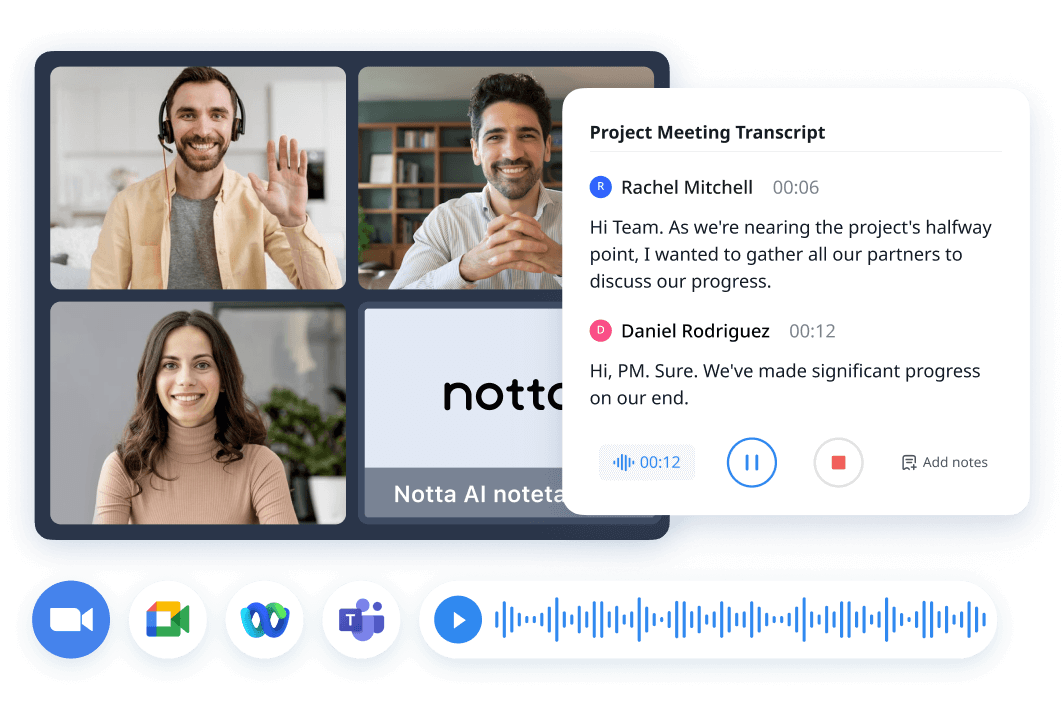
Automate your meeting workflows in smart ways

Effortless meeting access by syncing with your calendar
Notta streamlines meeting participation by seamlessly synchronizing your Google calendar. It automatically joins scheduled meetings on your behalf, eliminating the need to hunt for links or manually access each meeting. With Notta taking care of meeting attendance, you can concentrate on the discussions and objectives hassle-free.

Craft complete records for conversations
Discover the remarkable transcription capability of Notta, every detail can be captured and you will never miss a spoken word. When the meeting starts, Notta actively listens to meeting conversations and generates precise transcriptions in real-time. Say goodbye to missed information and rely on Notta’s precision to keep a comprehensive record of your meetings.
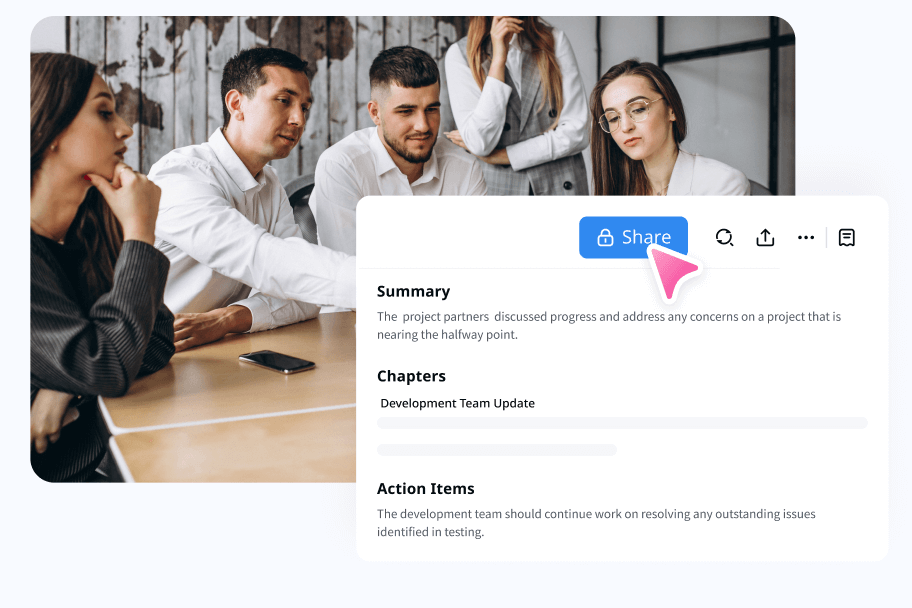
Summarize and share on the fly
Make necessary adjustments or add specific details in the transcription. The transcriptions generated by Notta are shareable, making it easy to distribute meeting summaries or important information among team members.
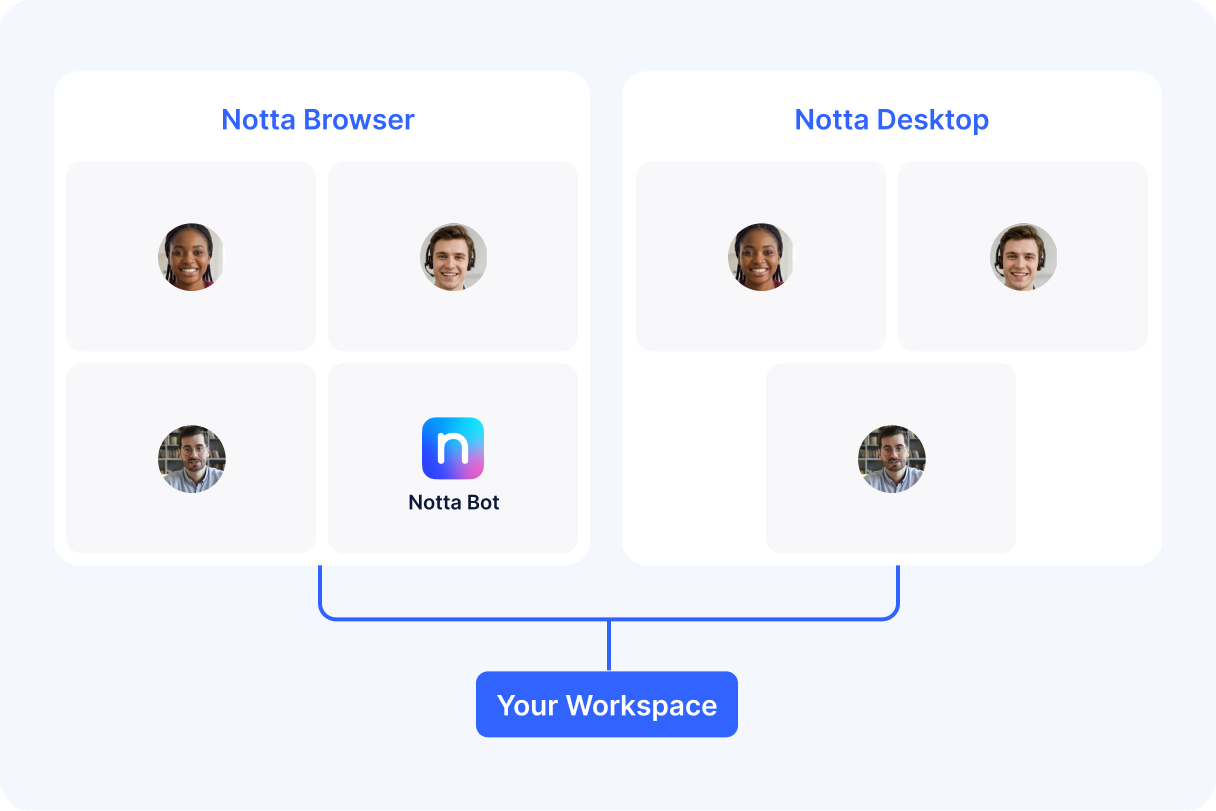
Bot or No Bot? You Pick.
Need a bot-recorded meeting with video? Use Notta Bot.
Would a visible bot affect the meeting? Use Notta Desktop to record from your device with no extra name in the participant list.
How to take automated meeting notes with Notta
1. Connect to your calendar
Create your Notta account. Navigate to Upcoming events, Click the “Connect” button to authenticate your calendar, once you connect the calendar, Notta will begin the syncing process.
2. Schedule your meetings
Navigate to your meeting platform and get the meeting link. Schedule the meeting with meeting links on your calendar. Then go back to the Upcoming events on Notta Dashboard, now you can see a meeting is synced successfully.
3. Activate auto-join meeting feature
Select the meeting you want to record and transcribe, schedule Notta to join, and it will automatically handle the recording and transcription for you.
4. Access the transcription
After the end of the meeting, you can review and edit the transcription anytime.


1. Connect to your calendar
Create your Notta account. Navigate to Upcoming events, Click the “Connect” button to authenticate your calendar, once you connect the calendar, Notta will begin the syncing process.
2. Schedule your meetings
Navigate to your meeting platform and get the meeting link. Schedule the meeting with meeting links on your calendar. Then go back to the Upcoming events on Notta Dashboard, now you can see a meeting is synced successfully.
3. Activate auto-join meeting feature
Select the meeting you want to record and transcribe, schedule Notta to join, and it will automatically handle the recording and transcription for you.
4. Access the transcription
After the end of the meeting, you can review and edit the transcription anytime.


FAQs
Which online meeting platforms does Notta support?
Notta is compatible with major platforms like Zoom, Google Meet Microsoft Teams, or Webex meetings. As long as the meeting URL is added to your calendar invite, the Meeting Bot can automatically join and transcribe for you.
Is my calendar data secure when using Notta?
Yes, Notta prioritizes data security and implements measures to protect your calendar information. It adheres to industry-standard security practices to ensure the confidentiality and integrity of your data. We protect your data with encryption using AWS's RDP and S3 services and comply with SSL, GDPR, APPI, and CCPA regulations.
Can I edit or search within long transcripts?
Sure, Notta offers a powerful full-text search across all your meeting transcripts. You can search by keyword, speaker name, date, or any other field for easy retrieval of specific information across meetings.
Can I record meetings without sending a bot to the call?
Yes. Notta Desktop captures both your microphone and your computer's system audio directly through the operating system, so no participant ("Notta Bot") appears in the meeting. Other attendees don't see anything. You get a transcript with speaker separation and AI notes, just like the bot version.
When should I use Notta Bot vs Notta Desktop?
Use Notta Bot when you can't be on the call yourself — schedule it from your calendar and the bot joins, records, and transcribes for you. Use Notta Desktop when you're attending the meeting in person, when the platform restricts bots, or when you want zero visible presence on the call (e.g., legal, healthcare, sales discovery, or board meetings).
Does Notta Desktop work on every meeting platform?
Yes. Because it captures audio at the OS level instead of joining the call, it works across Zoom, Microsoft Teams, Google Meet, Webex, Slack huddles, Discord, FaceTime, WhatsApp, and any browser-based meeting tool. Notta Desktop also auto-detects when one of these apps starts using your microphone and prompts you to start recording.
What is the main difference between Notta Bot and bot-free recording?
Use Notta Bot when you need a bot-recorded meeting with video. It joins when the meeting begins and can save video footage.
Use Notta Desktop when you want instant recording with no visible bot. It starts with zero delay, captures audio from your device, and gives you the transcript and meeting notes without adding another participant to the call.
Your automated meeting assistant is here
Let Notta join meetings and create detailed, searchable notes so you can focus on what matters most.
